FaSMED Pilot
This page offers a private link to the latest build (November 27 2015) for the FaSMED project pilot and step-by-step instructions for using the FaSMED.tns document with Cloud-based teacher analysis tools.
Step 1:
The teacher must have a Google Mail address and use this to log into Google drive. This is shown in the first video.
As shown in the video, within Google Drive:
create a Google Sheets document,
paste in your class list, (note that I have included my Gmail address as the last item of this list - this is optional)
rename the tab at the bottom of the sheet using the class name (in this case, 10m1).
Name the document as 'TEI_Classes', exactly as shown here.
Repeat this for each class you wish to include in this trial.
You are now ready to make the FaSMED.tns document available for your students.
Step 2:
Choose the easiest way to get the document to your students - this might be using a shared folder or your school Learning Management System, or might be via email, or DropBox or even Google drive.
Opening the document, students must log in with their name and class, press the 'start' button, and then build the graph described in the first task. They can check their solution against a sample, and then move on to the CheckList page where they must now 'submit' their response. Each time they complete an item, students need to press the 'submit' button to store their data to the ClipBoard.
At any time, they may leave the TI-Nspire App, open Safari, and paste into the entry line. This will store their response to the Cloud, where it will be immediately visible on the teacher spreadsheet.
Step 3:
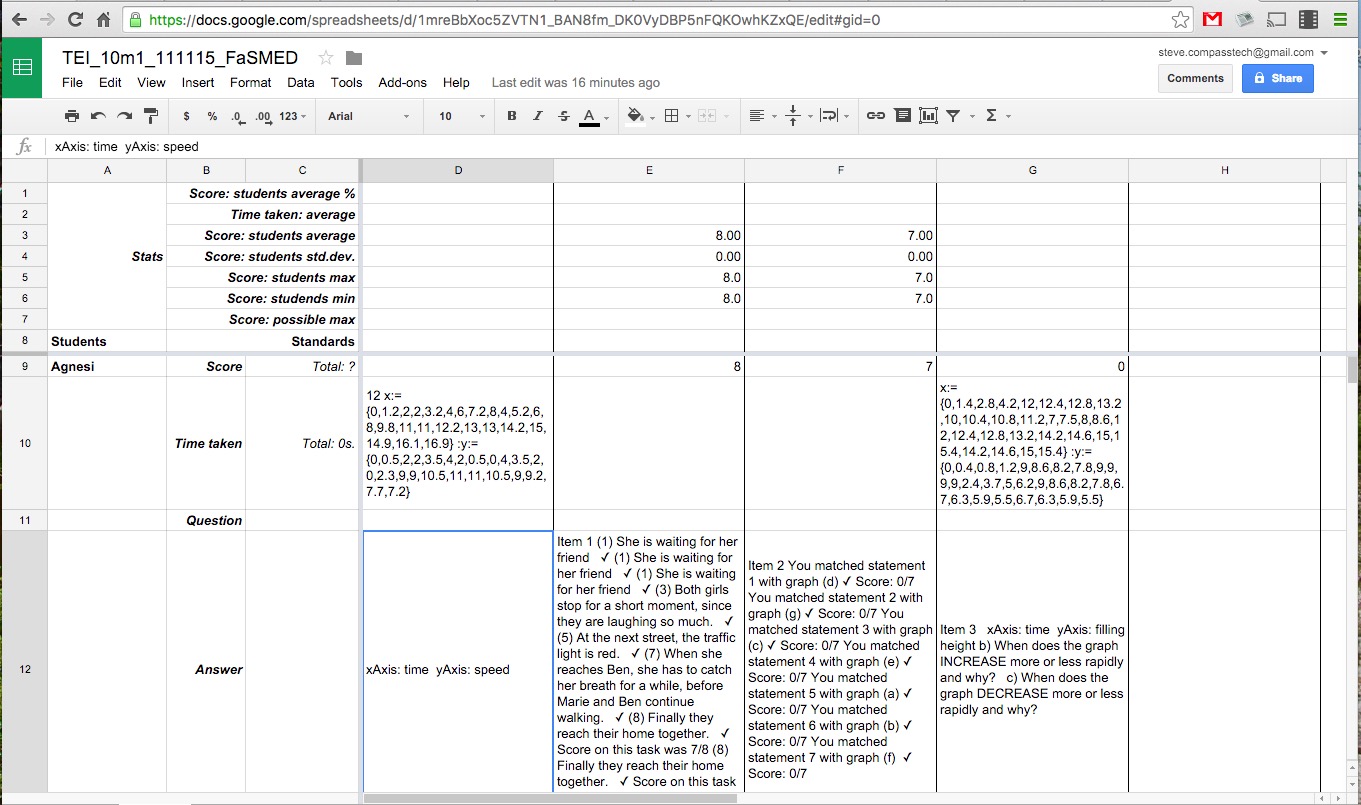
As your students complete their tasks and send these to the Cloud, the teacher spreadsheet will populate. All student repsonses (including their graphs) will be available for evaluation and scoring (if desired).
The teacher may view the class spreadsheet at any time in one of two ways:
- by opening the Google Drive folder corresponding to the Gmail address used - there you will find any existing class documents (a new one is created for a test each new day so that there is a record for late students, or a task that may take several days).
- By logging into the FaSMED.tns document using the Gmail address and that class name, as if you were a student. Use the Navigation Guide to go directly to the CheckList page and SUBMIT. Then paste into your browser - you will be offered the option to open the class spreadsheet in your browser.
To see the student graphs, the teacher may copy the list data from the spreadsheet cell, and paste it into a new Calculator page in TI-Nspire. This will create lists called "x" and "y" (or whatever the x and y axis labels are for that item). Insert a Data & Statistics page and add x and y labels as variables to see an approximation of the graph created by each student.
©2015 Compass Learning Technologies ← FaSMED Pilot